01DESKTOP MOVEMENT
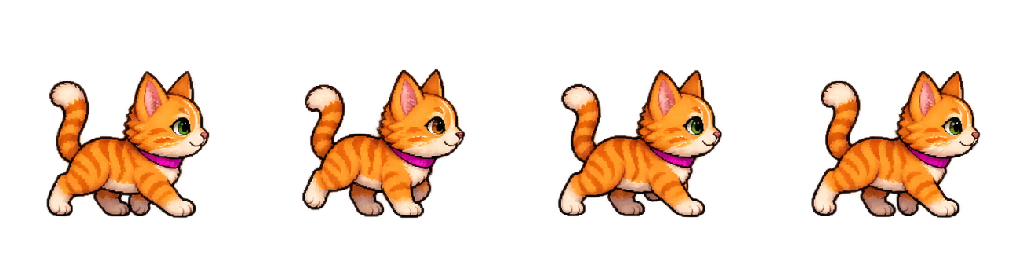
Walks instead of sliding.
Each pet uses dedicated walk frames, direction-aware movement and real floor positioning so it feels like a companion moving across the desktop — not a static sticker.
A DESKTOP COMPANION BUILT FOR DEEP WORK
Covaca Focus Pet walks across your screen, reacts when you pick it up, helps control distracting apps and tabs, tracks your sessions, rewards consistency, and turns focus into something you can actually feel.
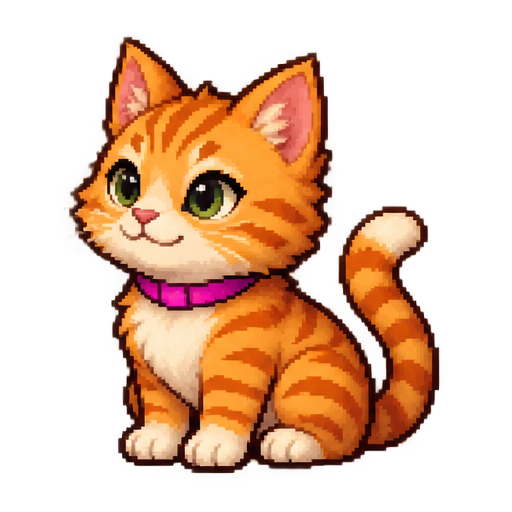 Cat
Cat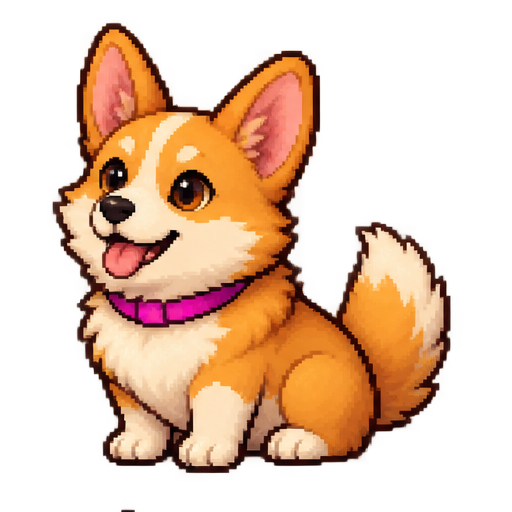 Dog
Dog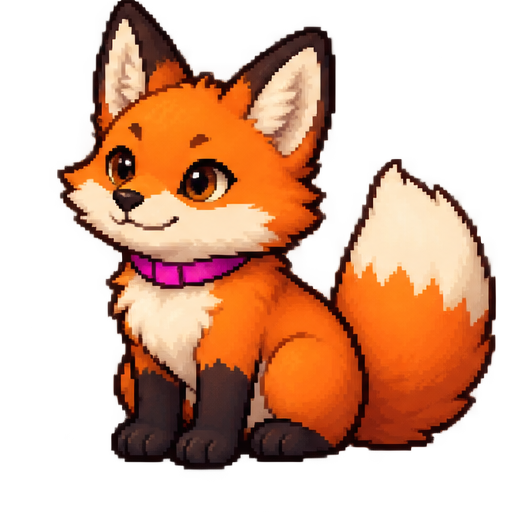 Fox
Fox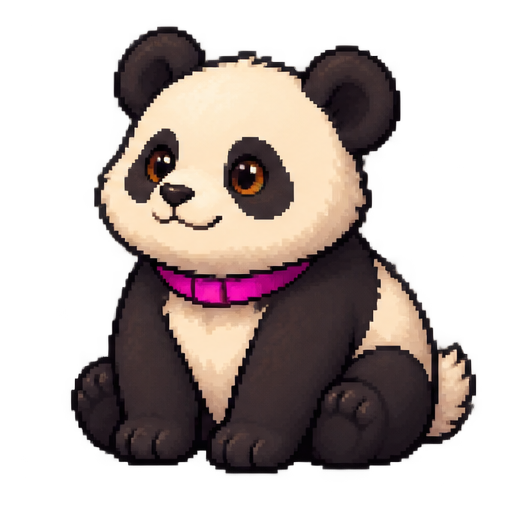 Panda
Panda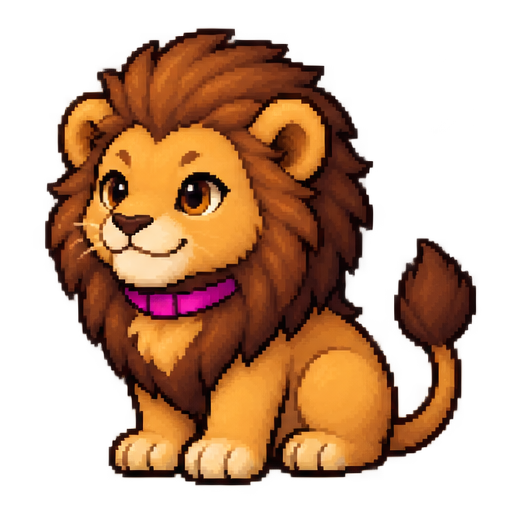 Lion
Lion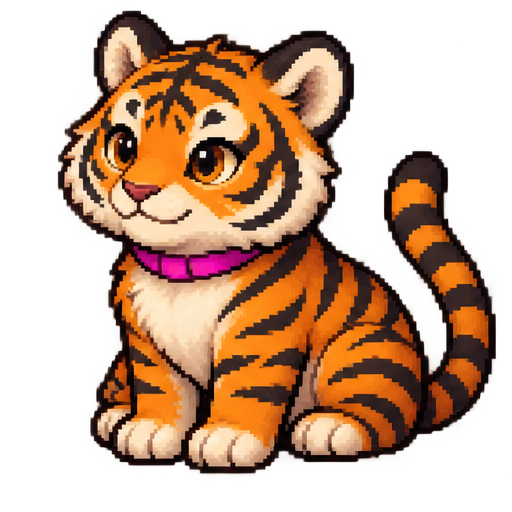 Tiger
Tiger
PRODUCT EXPERIENCE
Focus Pet combines real desktop behavior with practical focus controls. The companion is not decoration — it moves, reacts, and becomes part of the focus workflow.
Each pet uses dedicated walk frames, direction-aware movement and real floor positioning so it feels like a companion moving across the desktop — not a static sticker.
Pick the pet up and release it. Gravity, body tilt, stretch, shadow depth, squash, dust, rebound, wobble and dizzy stars create a much more physical reaction.
Configured apps can be allowed, minimized or closed. Browser Focus Shield can enforce website rules while preserving protected work, meetings and transfers.
Sessions build streaks, XP, levels and coins. Your pet gains mood, hunger and energy states while rewards unlock companions and useful cosmetic progression.
One click can move Focus Pet between Work, Study, Coding, Reading and Exam behavior. Each profile can combine timers, blocking, deep focus, task requirements and automation.
CONTROL CENTER
Everything that controls your focus environment lives in one structured control center: timer rules, blocking, pet behavior, automation, system protection, reports and privacy.
YOUR COMPANION
Every companion uses the same focus engine and physics system, with its own visual character. Select a pet below to preview it.
A relaxed companion for long deep-work sessions.
DOWNLOAD FOCUS PET
Windows x64 is the current runtime-tested build. Linux and macOS packages are available as cross-platform builds; window-control permissions depend on the desktop environment.
Download for Windows No account required for the core desktop focus experience.
Most Intel / AMD Windows PCs
Supported Windows on ARM devices
Common x64 Linux desktops
Supported ARM64 Linux environments
M-series Macs · Accessibility permission required for control
Supported Intel-based macOS systems
OPTIONAL BROWSER GUARD
Use the browser guard for URL-based rules, per-tab limits and Study Mode beyond the foreground desktop fallback.
AFTER DOWNLOAD
The desktop packages are portable archives. Extract the download first, then follow the instructions for your operating system. No separate .NET installation is required because the desktop builds are self-contained.
Use x64 for most Intel/AMD Windows PCs. Use ARM64 only for a Windows-on-ARM computer.
Most users should download Covaca-Focus-Pet-Windows-x64.zip. To check your PC architecture, open Settings → System → About → System type.
Open Downloads, right-click the ZIP and choose Extract All…. Do not run the app directly from inside the compressed ZIP.
Portable: open the extracted folder and double-click CovacaFocusCat.exe. Installed: right-click install.ps1 and choose Run with PowerShell if your Windows policy allows it.
It copies the app to %LOCALAPPDATA%\Programs\CovacaFocusCat, copies the browser-extension folder, creates a desktop shortcut, and launches Focus Pet.
The current development build is not code-signed. If you downloaded it from the official Covaca website, Windows SmartScreen may show “Windows protected your PC.” Choose More info → Run anyway. Do not bypass warnings for copies from unknown sources.
The pet should appear near the bottom of the desktop. Double-click the pet to open the Control Center. Right-click for the quick menu. Drag the pet to test walking, falling and physics.
Choose a pet, select a Focus Profile, set focus/break time, add blocked apps, enable Focus Shield if needed, and turn on Start with OS only if you want the pet every time Windows starts.
%LOCALAPPDATA%\Programs\CovacaFocusCat%APPDATA%\CovacaFocusCatCovacaFocusCat.exeThe package is a .tar.gz archive. x64 is for common Intel/AMD Linux PCs; ARM64 is for supported ARM systems.
From a terminal in your Downloads folder:
tar -xzf Covaca-Focus-Pet-Linux-x64.tar.gz
cd CovacaFocusCatchmod +x CovacaFocusCat install.sh./install.shThe script installs to your home directory — root/sudo is not required for the normal install.
Open Covaca Focus Cat from your application menu, or run:
covaca-focus-catIf your shell cannot find that command, use ~/.local/bin/covaca-focus-cat.
For full X11 foreground window control, install xdotool using your distribution package manager. Examples:
sudo apt install xdotool
# or: sudo dnf install xdotool
# or: sudo pacman -S xdotoolFocus timers, pet UI, rewards and local settings still work. App/window automation can be limited by Wayland compositor security and may require compositor-specific permissions or tools.
~/.local/opt/covaca-focus-cat~/.local/bin/covaca-focus-cat${XDG_CONFIG_HOME:-~/.config}/CovacaFocusCatChoose Apple Silicon for M1/M2/M3/M4-series Macs. Choose Intel for older Intel-based Macs.
Open Apple menu → About This Mac. If it says Apple M-series under Chip, download Apple Silicon. If it says Intel under Processor, download Intel.
Double-click the ZIP. The extracted folder contains Covaca Focus Cat.app, install.sh and the README.
You can drag Covaca Focus Cat.app into Applications, or run the included script from Terminal:
chmod +x install.sh
./install.shThe current development build is not notarized. After the first launch attempt, Control-click the app → Open. If macOS still blocks it, go to System Settings → Privacy & Security and use Open Anyway for the Covaca app you just attempted to launch.
Go to System Settings → Privacy & Security → Accessibility and enable Covaca Focus Cat if you want app/window automation. Timer, pet and local focus features can work without this permission.
Launch the app from Applications. Double-click the desktop pet for settings, choose a focus profile, and configure app/browser rules before your first protected session.
/Applications/Covaca Focus Cat.app~/Library/Application Support/CovacaFocusCatPrivacy & Security → AccessibilityThe desktop app can handle foreground focus actions. Install the Guard when you want URL-based rules, background-tab limits and Study Mode.
Download Covaca-Focus-Pet-Chromium-Guard.zip and extract it to a folder you will keep. Do not delete the folder after loading it.
Chrome: chrome://extensions
Edge: edge://extensions
Brave: brave://extensions
Enable Developer mode, click Load unpacked, and select the extracted Guard folder that contains manifest.json.
Copy the extension ID shown on the browser extensions page. In Focus Pet open Control Center → Browser & System, paste the ID, then use Detect extension / Register browser bridge.
Add website rules, enable Study Mode if needed, and keep download protection on if you do not want active transfers interrupted.
A Firefox developer package is included. Stable Firefox normally requires extensions to be signed for permanent installation, so Chromium-based browsers are currently the easiest supported manual setup.
First disable Start with OS and quit Focus Pet. Then remove the installed app folder/application and browser extension. Delete the settings folder only if you also want to erase focus history, pet progress and preferences.
Quit the running app before replacing files. Keep the settings folder if you want to preserve your local history. For Windows script installs, extract the new package and run its install script again.
Contact Covaca Technologies on +91 63743 34940 or +91 63803 33204 for Focus Pet installation help.
SHA256 lets you confirm that the file you downloaded matches the current package published on this website.
cfc9594d3e4706c6d9cff2d91841a81c566c832856391d51a7d09cf251cdfeaefd228b8ae7c965e66c63512331c98ff19efd6913ed3bb0ff8a556e97b7c6d488e986aec78248b45f627b4b8919f2281fc72ad59c3ea7acafa875a757e5d0b83b077f6902900a30969c17e8a9958dd2b312e5d6b16681b1ae132f717793e69d848ee15c74f15e9bda0936286bef16d074b28408f2aa30356a4d3901326c540708db4eabdcdc336e142b59236e3328eb47a7f2a45778cd3104f80ae23aa715d0a2COVACA TECHNOLOGIES
Covaca Technologies builds apps, websites, ecommerce systems and custom software from product direction through deployment and ongoing improvement.
Android, iOS and cross-platform applications with modern UI, authentication, payments, notifications and backend APIs.
Responsive business websites, ecommerce stores and product platforms designed to look modern and work properly on shared hosting or cloud environments.
Purpose-built systems for workflows that generic tools cannot handle well.
QUICK ANSWERS
Yes. The core desktop focus experience is local-first and can run without a user account.
Yes. The current Windows build uses walking frames, direction-aware movement, drag/drop physics, falling, impact, bounce and recovery animations.
Configured desktop apps can be allowed, minimized or closed. Browser background-tab control requires the optional browser guard extension; foreground fallback support is built into the desktop app.
Cross-platform builds are available. Linux window automation depends on the desktop/compositor, and macOS requires Accessibility permission for window control.
BUILD WITH COVACA
Talk to Covaca Technologies about app development, website development, ecommerce, custom software or Covaca Focus Pet.